
- By Prateek Levi
- Mon, 23 Feb 2026 12:14 AM (IST)
- Source:JND
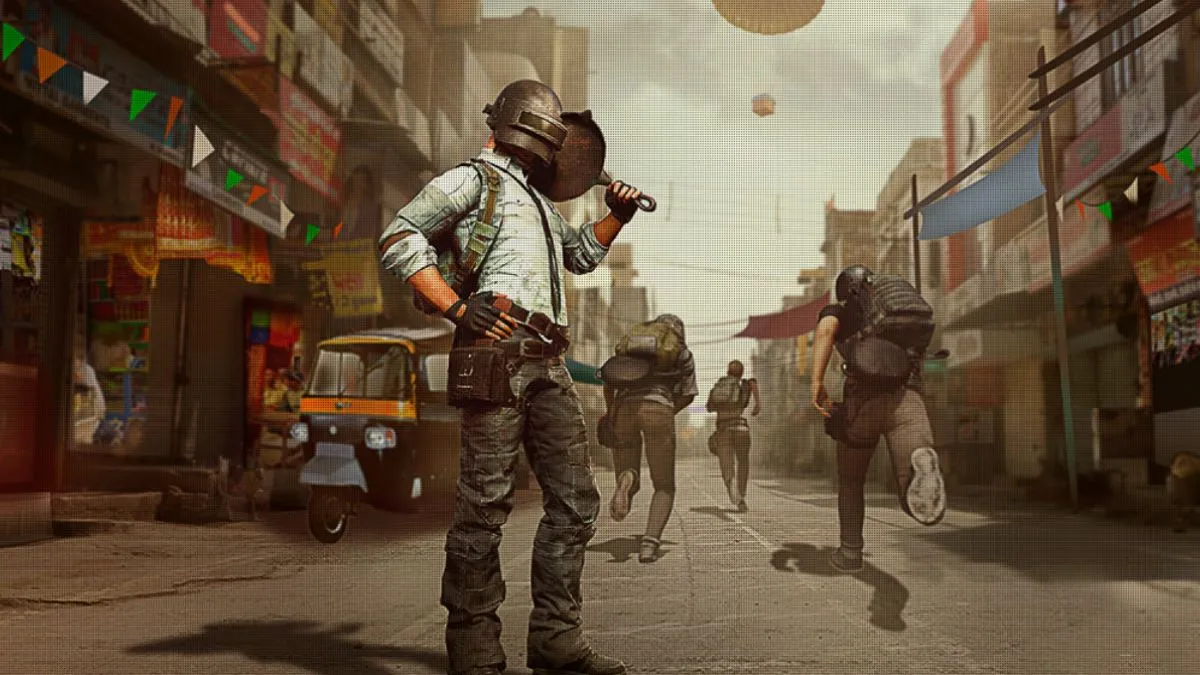
Online gaming is everywhere right now. Almost every smartphone has at least one game installed. But when it comes to heavy titles like Battlegrounds Mobile India, things can get frustrating, especially if you’re using a budget or mid-range phone.
Lag in close fights. Frame drops while driving. Phone heating up after two matches. Sound familiar?
ALSO READ: Sarvam’s Indus AI App Takes On ChatGPT And Gemini: Download Details, Top Features Explained
Here’s the thing most players don’t realise: it’s not always your phone’s fault. A lot of the time, the problem sits inside the game’s own settings. Tweak a few options properly, and you can actually make BGMI run much smoother.
Let’s break it down.
Turn On Smart Removal First
Open the game, go to Settings, then head to the Downloads section. You’ll see an option called Smart Removal. Switch it on.
Over time, BGMI stores extra resource files that you don’t really need. These files just sit there, taking up space and sometimes affecting performance. Smart Removal clears that clutter. It’s a small change, but it helps free up storage and keeps things lighter.
Fix Your Graphics Settings
Now go to the Graphics tab.
First, turn off Power Saving mode. It sounds helpful, but it can limit performance during intense gameplay.
Next, disable Shadows. Yes, shadows make the game look better, but they also push your GPU harder. Turning them off reduces load instantly.
After that, switch off Auto Adjust Graphics. When this is on, the game keeps changing settings automatically, which can cause unstable frame rates. It’s better to control things manually.
These three tweaks alone can make the gameplay feel much more stable.
Disable Highlight And Replay Features
Head to Advanced Controls.
Turn off Highlight Moments and Replay. These features record your gameplay clips in the background. That means your processor and storage are constantly working, even when you don’t notice it.
On mid-range phones, this extra load often leads to heating and sudden frame drops. If you’re not actively creating content, it’s better to keep them off.
Run Routine Repair At The End
Once you’ve made all these changes, use the Routine Repair option.
ALSO READ: OpenAI Reportedly Developing A Facial Recognition Speaker, Innovation Or High-Stakes Gamble?
This scans the game files and fixes small issues that may be causing crashes or random lag spikes. It only takes a few minutes and can make a noticeable difference.
Sometimes smoother gameplay isn’t about buying a new phone. It’s just about setting things up properly. Try these changes, play a few matches, and you’ll likely feel the difference yourself.
Recommended For You