
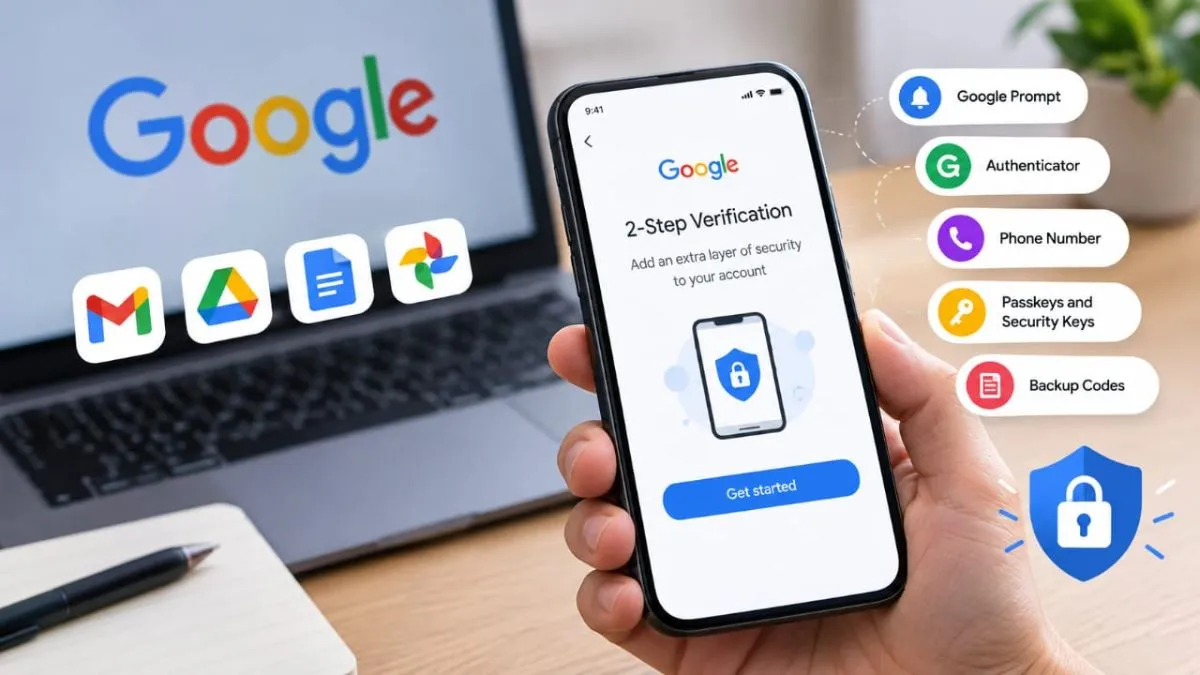
Most of us use the same Google Account for several things. Gmail, Google Drive, Google Docs and other Google services are all tied to it. The account can also be used on multiple devices and may be linked to payment details for purchases made through the Google Play Store.
That makes the password protecting your Google Account pretty important. But a password on its own may not always be enough. If it gets leaked or someone manages to obtain it, they could try to sign in to your account.
Now to save you from this breach, Google has a simple security setting that can help with this. This simple process is called the 2-Step Verification, or two-factor authentication. Once turned on, Google adds another verification step when you sign in. So, entering the password is not the only thing required to access the account.
Why should you turn on 2-Step Verification?
The main reason is simple: it gives you another layer of protection if your password falls into the wrong hands.
For example, someone may have your password but still won't be able to complete the sign-in without the second verification method linked to your account. Google supports several options, including Google Prompt, an authenticator, phone number, passkeys and security keys. You can also set up backup codes for situations where you cannot use your usual verification method.
This is particularly useful for a Google Account that you use for personal files, emails, Play Store purchases and other services.
How to enable 2-Step Verification on your Google Account
You can switch the feature on from your phone or computer. Here's where to find the setting:
1. Open Chrome or another web browser on your phone or PC.
2. Tap your profile picture in the top-right corner.
3. Select Manage your Google Account.
4. Go to Security menu on the left.
5. Scroll down to How you sign in to Google
6. Tap 2-Step Verification.
7. Enter your Google Account password when prompted.
8. You will now see the Second steps section.
9. Choose the verification method you want to use. Google lets you set up Passkeys and Security Keys, Google Prompt, Authenticator, Phone Number and Backup Codes.
10. Follow the instructions on the screen to finish setting up the selected option.
ALSO READ: Airtel Postpaid Users Will Now Get iCloud+, Apple TV And Arcade At No Extra Cost: Check Plan Details
Once you've completed the setup, Google will use the additional verification method when it requires a second check during sign-in. This means your password is no longer the only thing standing between someone else and your Google Account.
If you use your Google Account for several services, it is worth taking a minute to check whether 2-Step Verification is already enabled. If it isn't, you can turn it on from the same Security.